Published
- 2 min read
Boost Your Terminal Productivity with tmux
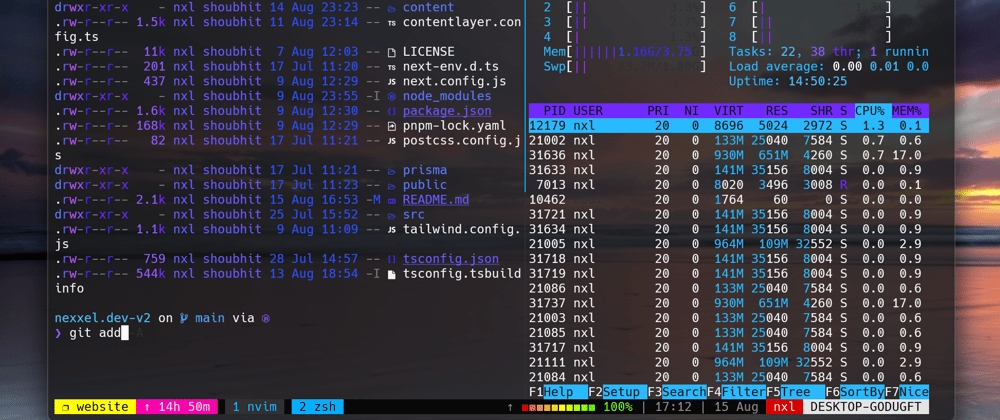
tmux (Terminal Multiplexer) is a powerful tool that lets you manage multiple terminal sessions in a single window. Whether you’re a developer, sysadmin, or power user, tmux enhances your workflow by allowing you to split windows, detach sessions, and customize keybindings.
🚀 Why Use tmux?
- Persistent Sessions: Keep your work running even if you disconnect.
- Multiple Windows & Panes: Organize your terminal efficiently.
- Customization: Create shortcuts for faster navigation.
⚡ Installation
macOS:
brew install tmuxUbuntu/Debian:
sudo apt update && sudo apt install tmux🔥 Essential Commands
| Command | Action |
|---|---|
tmux | Start a new session |
tmux new -s mysession | Create a named session |
tmux ls | List all active sessions |
tmux attach -t mysession | Reattach to a session |
tmux kill-session -t mysession | Kill a session |
Ctrl+b d | Detach from the current session |
Ctrl+b c | Create a new window |
Ctrl+b n | Switch to the next window |
Ctrl+b p | Switch to the previous window |
Ctrl+b % | Split pane vertically |
Ctrl+b " | Split pane horizontally |
Ctrl+b o | Switch between panes |
Ctrl+b x | Close the current pane |
Ctrl+b z | Zoom in/out on a pane |
🎯 Custom .tmux.conf
Create or edit your ~/.tmux.conf file to enhance your tmux experience with these custom settings:
       # Change the default prefix from Ctrl-b to Ctrl-a
unbind C-b
set -g prefix C-a
bind-key C-a send-prefix

# Enable mouse support for easier navigation
set -g mouse on

# Use Vim keybindings in copy mode
setw -g mode-keys vi

# Increase history scrollback limit
set -g history-limit 100000

# Split panes using | (vertical) and - (horizontal)
bind | split-window -h
bind - split-window -v
unbind '"'
unbind %

# Quick pane navigation (h, j, k, l)
bind h select-pane -L
bind j select-pane -D
bind k select-pane -U
bind l select-pane -R

# Resize panes with Shift + (H, J, K, L)
bind -r H resize-pane -L 5
bind -r J resize-pane -D 5
bind -r K resize-pane -U 5
bind -r L resize-pane -R 5

# Reload tmux configuration with Ctrl-a + r
bind r source-file ~/.tmux.conf \; display "Config Reloaded!"

# Set base index to 1 for easier window management
set -g base-index 1
setw -g pane-base-index 1
set -g renumber-windows on

# Enable 256-color support for better themes
set -g default-terminal "screen-256color"
Save the file and reload your tmux configuration by running:
tmux source ~/.tmux.confNow, your tmux setup is optimized for efficiency! 🚀