Published
- 3 min read
How to Find Storage Usage of Files and Folders on a Linux Server
How to Find Storage Usage of Files and Folders on a Linux Server
In today’s fast-paced digital world, efficient storage management is crucial for maintaining server performance and avoiding unexpected downtime. Whether you’re a system administrator or a developer, understanding how to locate and monitor the storage usage of files and directories on your Linux server is a must-have skill. In this comprehensive guide, we’ll cover powerful Linux commands such as du, df, and find to help you quickly identify disk space issues and optimize your system.
Table of Contents
- Introduction
- Understanding Disk Usage on Linux
- Using the
duCommand - Leveraging the
dfCommand - Advanced File Search with
find - Practical Scenarios
- Conclusion
- Additional Resources
Introduction
Efficient disk space management is vital to the health of any Linux server. Over time, unwanted files and large logs can consume valuable space, leading to performance issues. This guide will equip you with the knowledge to:
- Monitor disk usage using standard Linux commands.
- Identify large files and directories that could be impacting performance.
- Maintain a clutter-free system to enhance server efficiency.
These techniques are essential for troubleshooting and proactive server management, ensuring your system remains scalable and robust.
Understanding Disk Usage on Linux
Linux offers a variety of commands to help you monitor and manage disk usage. The most commonly used tools are:
du(Disk Usage): Displays the amount of disk space used by files and directories.df(Disk Free): Provides an overview of disk space available on mounted filesystems.find: Searches for files and directories based on criteria like size, modification time, and more.
By leveraging these commands, you can quickly pinpoint storage issues and optimize your server for better performance.
Using the du Command
The du command is indispensable for checking the size of files and directories.
Basic Syntax and Options
du [options] [file_or_directory]Common Options:
-h: Display sizes in a human-readable format (e.g., K, M, G).-s: Summarize the total size for a directory.--max-depth=N: Limit the output to directories up to N levels deep.
Example Usage
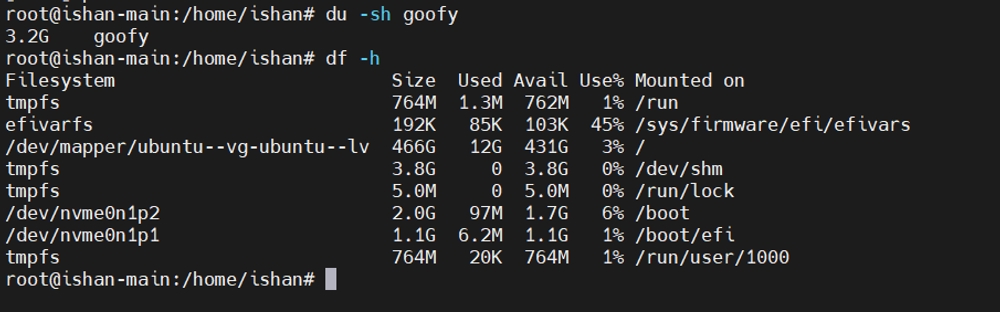
To check the total size of a directory:
du -sh /path/to/directoryExample Usage (continued)
To display the sizes of subdirectories (one level deep):
du -h --max-depth=1 /path/to/directoryLeveraging the df Command
The df (disk free) command provides an overview of the disk space usage for all mounted filesystems. This utility is essential for monitoring your system’s storage health, showing both used and available space.
Overview and Options
The basic syntax for the df command is:
df [options]Common Options
-h: Outputs sizes in a human-readable format.-T: Displays the filesystem type along with usage statistics.
Example Usage
To view disk space for all mounted filesystems:
df -hAdvanced File Search with find
The find command is a powerful utility for locating files and directories that meet specific criteria, such as file size, type, or modification date.
Basic Syntax
find [path] [expression]Example Usage
To find files larger than 100MB:
find /path/to/search -type f -size +100MPractical Scenarios
Scenario 1: Monitoring Your Home Directory
For a quick assessment of your home directory’s storage usage, run:
du -h --max-depth=1 /home/usernameScenario 2: Managing a Web Server
If you manage a web server, it’s crucial to monitor disk usage for website files and logs:
du -sh /var/www/htmlScenario 3: Identifying System-Wide Storage Hogs
To locate files larger than 500MB across your entire filesystem:
find / -type f -size +500M -exec ls -lh {} \;Conclusion
Regular monitoring of disk usage is essential for maintaining a robust and efficient Linux server. By mastering commands such as du, df, and find, you can easily track storage consumption, identify space hogs, and take proactive measures to optimize system performance.
Incorporate these techniques into your routine maintenance to prevent unexpected disk space issues and ensure your server operates at peak performance.